AI Decision Flow
Power AI Decision shows the mechanic mapper used by the Power AI workflow as a graph. It helps you follow how a request is split into mechanics, mapped to Power elements, and translated into assets.
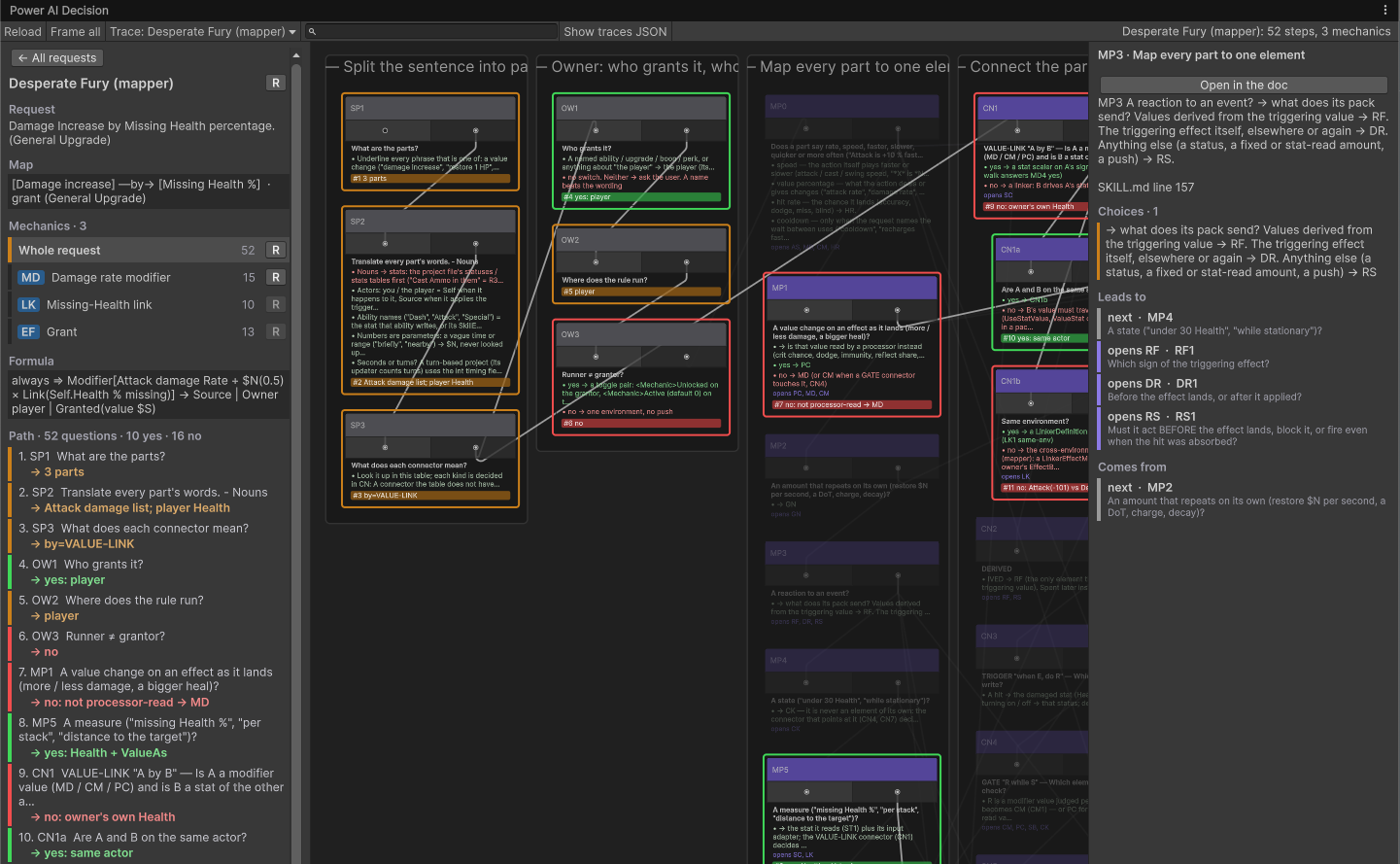
Open it from Tools → Power → AI → Decision Flow.
Read the window
The center graph shows the mapper's questions and the links between them. The left panel lists recorded requests, their mechanics, formulas and answered paths. Select a mechanic to focus the graph on that mechanic's path. Select a question in the graph or path to see its explanation and links in the right panel; double-click a graph question to open its source in the skill documentation.
Use the toolbar to:
| Control | Does |
|---|---|
| Panels | Shows or hides Left · Requests and Right · Question. Drag the side-panel edges to resize them; visibility and widths are remembered. |
| Reload | Rereads the skill documentation and trace log. The window also reloads when focused after either file changes. |
| Frame all | Fits the whole graph in view. |
| Trace | Selects a recorded request, or clears the selection to show all requests. |
| Search | Finds questions by words in their text, IDs or choices, then outlines and lists the matches. |
| Show traces JSON | Opens the trace log, or the skill documentation when no trace log exists yet. |
Question outlines show the answer taken in the selected trace: green for yes, red for no and amber for a picked value. Dimmed questions are outside the selected path. Graph links show the next question, a conditional branch, an element walk, or a field passed to another element. The legend at the bottom explains the colors.
Requests and traces
The mapper records request traces in .claude/build-mechanic/flow-traces.json at the project root, outside Assets. The file is created by the AI workflow; before a request has been mapped, the window shows the flow without a trace.
Choose a request to see its original text, map, formula and answered questions. Requests that contain multiple mechanics can be inspected as a whole or one mechanic at a time. A mechanic's R button roots Power Relations on the assets it created. Existing assets it changed remain recorded separately in the trace, rather than becoming unrelated roots.
The graph is read from the installed Assets/Plugins/Power/Editor/AiFlow/power-skill documentation, so it reflects the mapper instructions the AI workflow uses.
From request to fields
The workflow starts with power.py flow start, then loads only the selected element groups. It answers each element's field questions before choosing the asset commands. Shared groups cover repeated operations such as Actor/Stat lookups, targeting and conditions; the builder returns to the caller after each shared walk. The trace retains the overall map and a separate formula, path and created/changed asset list for each mechanic.
Choices and additional effects
The right panel separates a question's explanation from its choices. Choices show the questions or groups they lead to, so you can inspect the next step without searching the whole graph.
State-Based Effects and Counter Effects each have their own Additional Effects questions, matching their different configuration fields. Their target choices lead through the targeting group before targeting filters. Raw incoming-value caching has its own mapping branch and uses a precontribution Reflector; reactions and cached values are mapped separately.