Relations
Relations draws one or more Stats as a graph: the Stats and Effects that reference them, and the ones they reference. Use it to see a mechanic as a whole before you change it.
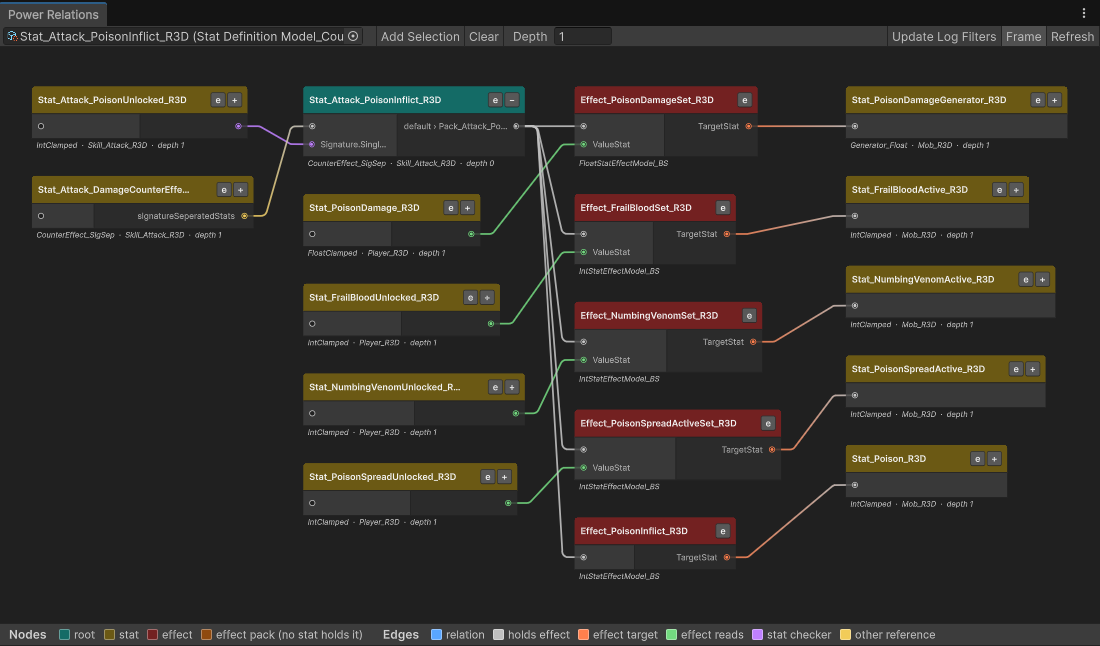
Open it from Tools → Power → Relations and pick a Stat Definition or a Stat Key in the toolbar field. You can also open it on a Stat directly:
- Assets → Power → Show Relations on one or more Stat Definitions or Stat Keys in the Project window,
- Assets → Power → Add To Relations to add the selected Stats to the graph already open,
- Show Relations in the ⋮ menu of a Stat Definition or Stat Key inspector, or the Show Relations button at the top of a Stat Definition inspector,
- the r button next to a Key field in any inspector, and on rows in Access, Search, Validator and the Power Editor's asset list.
A Key opens the Stat that uses it. When several Stats use the same Key, the first one opens.
Several Stats in one graph
A mechanic is usually more than one Stat. Show them together and the graph draws every root and what connects them:
| Control | Does |
|---|---|
| Toolbar field | Picks one root and replaces all others. |
| Add Selection | Adds the Stats (and the Stats of Keys) selected in the Project window as more roots. |
| Clear | Removes every root. |
| +N more | Shown next to the field when there are several roots; hover it for their names. |
Roots are placed like any other node: a root that an earlier root links to sits next to it, and only roots no earlier one reaches start a new stack in the first column. Effects, Packs and other assets can't be roots; they appear as nodes when a root reaches them.
When to use it
- What touches this Stat? Every Effect that targets
Health, every Stat related to it, every Condition that reads it. - What breaks if I change it? Check what references a Stat before you delete, rename or convert it.
- Why did this happen? A value changed and you don't know which Effect or relation caused it.
- Did my wiring land? After you load a Premade Relation Pack or wire a relation, check that the links point where you expect. An AI agent can open its whole build here for you (
/build-mechanic --relations, see AI Support). - Debug one mechanic. Select its nodes and press Update Log Filters to log only those Stats and Effects.
Reading the graph
Nodes are Stats and Effects. Effect Packs, Injectors, Adapters and other assets in between are walked through, and their names appear in the link's label (EffectPack › Pack_Fireball › effects). An Effect Pack that no Stat holds gets a node of its own.
| Node | Color key |
|---|---|
| Root | A Stat you opened the graph for. |
| Stat | A Stat Definition. The subtitle shows its Container, Environment and how many Stats away it is. |
| Effect | An Effect. |
| Effect pack | An Effect Pack that no Stat holds. |
| Edge | Means |
|---|---|
| Relation | A relation on the Stat (Modifier, Conditional Modifier, Counter, Director…). |
| Holds effect | The Stat, Pack or other asset holds the Effect. |
| Effect target | The Effect's Target Stat. |
| Effect reads | The Effect reads the Stat (Value Stat, Duration Stat…). Drawn into the Effect, on a port named after the field. |
| Stat checker | A Condition on one Stat reads another Stat. Drawn into the Stat that holds the check. |
| Other reference | Any other reference. |
The legend under the graph shows the same colors. Who references an asset follows the Power Editor's References rules: an asset of another type that only names the Stat (an upgrade option, a scenario) isn't drawn.
Depth and expanding
Depth sets how many Stats away from the roots are expanded. Effects between two Stats don't add a level, so at depth 1 you see the roots' Effects and the Stats beyond them.
Press + on a Stat node to load its relations, and − to hide them again, together with everything only they brought in. Nodes you expand by hand stay expanded after a domain reload.
Working with nodes
| Action | Does |
|---|---|
| Select a node | Highlights it and everything one Stat away from it. |
| Double-click a node | Pings the asset in the Project window. |
| e on a node | Opens the asset in the Power Editor. |
| Update Log Filters | Adds the highlighted Stats to the active Log Settings' Stat filter and the highlighted Effects to the Effect filter, and turns on the matching log types. |
| Frame | Fits the whole graph in the view. |
| Refresh | Rescans the project's references and redraws. The graph also refreshes on its own when assets change. |